Browser-Based vs Desktop PDF Tools — A Privacy Comparison
"Free PDF tool" can mean three completely different architectures with three completely different privacy stories. The labels look interchangeable, but what is happening to your file in each case is not. Here is how to tell them apart, and how to verify the claims you are being given.
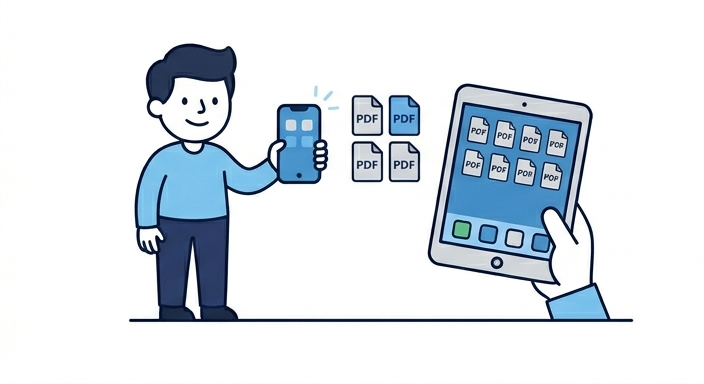
The three architectures
1. Server-side web tool
You upload your PDF to a website. A server somewhere does the processing — merging, splitting, compressing — and sends back a result. From a privacy standpoint, your file has been transmitted to and stored, even briefly, on infrastructure you do not control. The site's privacy policy may promise the file is deleted within an hour, but you have no way to verify that, and you are now trusting both the site's intentions and its security posture.
2. Browser-side web tool ("processed locally")
The page loads JavaScript that performs the conversion entirely in your browser tab. Your file is opened with a file-input element, processed by JavaScript on your CPU, and the result is generated and downloaded directly. The site's server only ever serves static assets — HTML, CSS, JS, images. The PDF never crosses the network.
3. Desktop application
You install a native app — Adobe Acrobat, PDF-XChange, Foxit, or open-source tools like LibreOffice or Master PDF Editor. The processing runs on your machine using its own libraries. Your file does not touch the internet at all (unless the app phones home for telemetry).
The trust differences
Server-side web tool
You trust: the site's intentions, its servers, its TLS, its data retention policy, its incident response. You can verify: almost nothing without inside access.
Browser-side web tool
You trust: the JavaScript currently being executed in your tab. You can verify: that no network requests transmit your file, by watching DevTools.
Desktop application
You trust: the binary you installed, including any updates. You can verify: that the process is not making outbound connections, with a firewall rule or network monitor.
Browser-side and desktop are similar in that they both keep the file on your machine. The big practical difference is install friction: a desktop tool needs to be downloaded, installed, kept updated, and trusted as code with full access to your system. A browser-side tool is just a web page; close the tab and nothing remains.
How to verify a "browser-based" claim
The good news is that the difference between server-side and browser-side processing is observable from your own machine, with tools every browser ships with. Here is the verification procedure for any tool that claims to "process your PDF in your browser":
- Open the tool in a normal browser tab.
- Open DevTools (
F12on Windows/Linux,Cmd+Option+Ion Mac) and switch to the Network tab. - Click the "clear" button to remove any earlier requests.
- Process a small dummy PDF using the tool.
- Watch the Network tab. If the tool genuinely runs in your browser, you will see no request transmitting your file's contents. There will be requests for static assets, ad scripts, and analytics — that is normal — but nothing the size of your PDF leaving the tab.
If a tool claims local processing but you see a multi-megabyte upload to /api/process or similar, the claim is false. This is a reliable, fast check; it takes about a minute.
Where browser-side has limits
Browser-side tools are not always the right answer. Some operations are too memory-intensive to run reliably in a tab, or too slow without native code, or simply not implementable in JavaScript. Specifically:
- OCR on large scans. Real OCR uses heavy machine-learning models that don't fit comfortably in a browser tab — typically a desktop tool or a server is more appropriate.
- Hundreds-of-megabytes documents. A 1 GB PDF will reliably crash any browser tab. Desktop tools using mmap and streaming I/O handle this fine.
- Operations requiring system fonts. Browsers can read fonts embedded in PDFs but cannot use system-installed fonts the way desktop tools can. Edge cases in font substitution may render differently.
- Legally regulated workflows. Some industries (defence, healthcare in some jurisdictions) do not allow document handling outside specific approved environments — even an in-browser tool counts as "outside" if it is loaded from the internet.
For everyday merging, splitting and page removal, none of these limits matter. For specialist workflows, a desktop tool is often the right match.
The privacy-policy red flags to watch for
Even if a tool genuinely runs in your browser, the page itself may still leak metadata. Things to check in a tool's privacy policy:
- "Files may be temporarily stored on our servers" — translation: your file does upload, regardless of marketing copy.
- Vague third-party data sharing clauses — even browser-side tools sometimes share filenames, page counts, or other metadata with analytics providers.
- No mention of cookies for advertising — almost every ad-supported site uses them; if the policy doesn't mention them, the policy is incomplete.
- "We may process your data to improve our services" — for a browser-side tool, this should not apply to your file content. If it does, your file is being uploaded somewhere.
The honest summary
If you care about privacy, the spectrum is roughly:
- Most private: reputable open-source desktop tools, used offline.
- Almost as private: browser-side web tools whose claim you can verify in DevTools.
- Less private: commercial desktop tools that phone home for telemetry, but never transmit your file content.
- Considerably less private: server-side web tools — even reputable ones, because you cannot verify deletion.
- Avoid: any tool whose privacy policy is vague, whose business model is unclear, or whose UI is full of dark patterns.
None of this is unique to PDF tools — it applies to any "free online tool" you find. The PDF case is just particularly worth thinking about, because the documents people convert often contain personal information by definition.